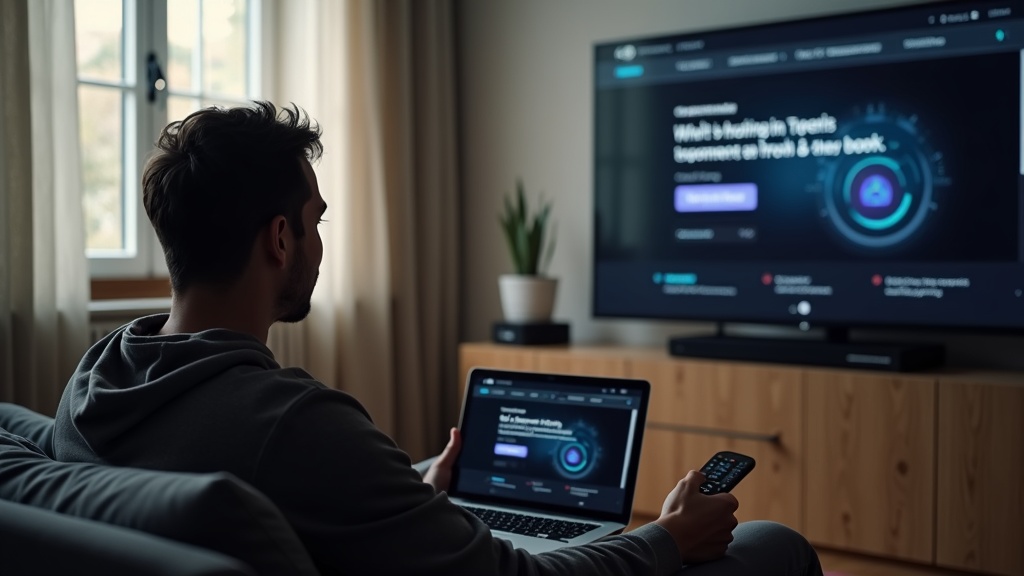
You’re all set for movie night, but the dreaded Netflix VPN error message pops up just as you hit play. It’s frustrating, but you’re not alone—Netflix actively blocks VPNs to enforce regional licensing, and many users run into this exact issue. This guide will help you quickly resolve the Netflix VPN blocked error on smart TVs, streaming sticks, and set-top boxes, so you can get back to your show without the hassle.
What you’ll learn:
- Why Netflix blocks VPNs and how to tell if your VPN is the problem
- Step-by-step fixes for popular devices like Fire TV, Roku, and Apple TV
- How to pick a VPN that consistently works with Netflix
Why Netflix Blocks VPNs
Netflix uses advanced technology to detect and block VPNs because its content library varies by country due to licensing agreements. When you connect through a VPN, Netflix sees an IP address associated with a data center or known VPN server—not a typical residential connection. To maintain compliance with regional content rules, Netflix blacklists these IPs, resulting in the proxy error message.
Quick Fixes to Try First
Before diving into advanced solutions, try these simple steps—they often resolve the issue in minutes.
Switch VPN Servers
If your current server is blocked, simply connect to a different server in the same country. Top VPNs like NordVPN and ExpressVPN offer multiple servers optimized for streaming; try a few until one works.
Clear Netflix App Data or Cache
Sometimes, Netflix stores location data temporarily. On your device, go to Settings > Apps > Netflix > Clear Cache (or Storage). Then restart the app and reconnect your VPN.
Restart Your Device and Router
A fresh start can clear network glitches. Turn off your streaming device and router, wait 30 seconds, and power them back on. Reconnect to your VPN before launching Netflix.
Device-Specific Solutions
Different devices may need tailored approaches. Here’s how to handle the most common streaming platforms.
Smart TVs (Samsung, LG, etc.)
Most smart TVs don’t support VPN apps natively. The best workaround is to install the VPN on your router. This protects every device on your network, including your TV. If that’s not an option, use a VPN-enabled virtual router from your Windows PC or share the connection from a VPN-connected computer.
Amazon Fire TV Stick
Fire OS supports VPN apps directly. Install your VPN from the Amazon Appstore, log in, and connect to a server before opening Netflix. If you encounter issues, try force-stopping the Netflix app or reinstalling the VPN.
Roku Devices
Roku doesn’t allow VPN apps, so you’ll need to set up the VPN on your router or use a computer or phone with a VPN and screen mirror to your Roku. Note that screen mirroring may reduce video quality.
Apple TV
For Apple TV, you can use a VPN-enabled router or set up a VPN connection through DNS settings. Some VPNs, like ExpressVPN, offer custom DNS services that work well with Apple TV—check your VPN’s support page for instructions.
Game Consoles (PlayStation, Xbox)
Similar to Roku, game consoles typically require router-level VPN setup. Alternatively, you can share a VPN connection from your Windows or Mac computer via Ethernet or Wi-Fi sharing.
Choosing a VPN That Beats Netflix Blocks
Not all VPNs can reliably unblock Netflix. The best services invest in dedicated streaming IPs and frequently refresh their servers to stay ahead of blocks. Look for VPNs with:
- A large server network spread across many countries
- Streaming-optimized servers
- Strong obfuscation or stealth technology
- Fast speeds for buffer-free HD and 4K playback
Based on our tests, NordVPN and ExpressVPN are among the top choices for Netflix, with consistent success rates and easy-to-use apps for various devices.
Best VPN This Month
NordVPN is our top pick for streaming—it unblocks Netflix, Disney+, and more, with fast speeds and reliable connections across devices.
When All Else Fails: Contact Support
If you’ve tried everything and still can’t access Netflix, reach out to your VPN’s customer support. They can often recommend specific servers that are currently working or provide custom setup advice for your device. Reputable VPNs offer 24/7 live chat, so help is just a message away.
Enjoy Buffer-Free Streaming Again
Dealing with a Netflix VPN block is annoying, but it’s usually fixable. By switching servers, tweaking your setup, or using a proven VPN service, you can regain access to your favorite shows and movies. For more tips on streaming securely, check out our streaming guide or compare the best VPNs for Netflix.
Ready to stream without limits? Get NordVPN now and bypass Netflix blocks for good.





Join the discussion
Have a question or a fix to add? Share it below.