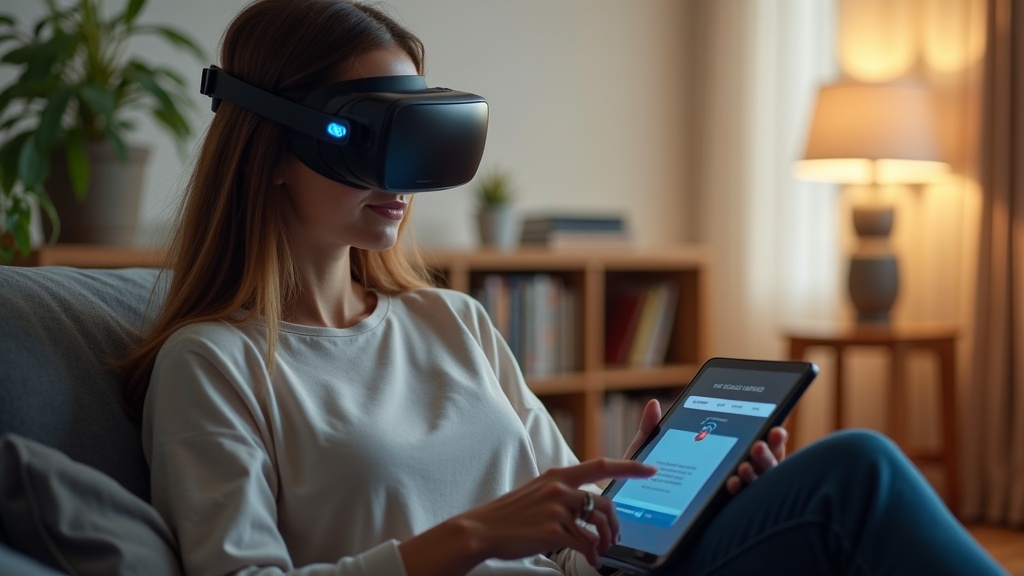
Your Apple Vision Pro promises immersive entertainment, but that promise breaks when Disney Plus blocks your VPN connection. Getting your VPN Disney Plus setup to work seamlessly is crucial for accessing your home country's library or protecting your privacy while streaming. This guide will walk you through the most effective fixes, from simple app restarts to more advanced troubleshooting steps.
What you’ll learn:
- Why Disney Plus often blocks VPN connections on new devices like the Vision Pro.
- Step-by-step solutions to get your VPN working again.
- How to choose a VPN that reliably bypasses Disney Plus geo-restrictions.
Why Your VPN and Disney Plus Are Fighting
Disney Plus uses sophisticated technology to detect and block IP addresses associated with VPNs. When you connect through a VPN, Disney Plus sees you're using an IP address from a data center, not a typical residential internet connection. The service then assumes you're trying to circumvent geographic licensing agreements and blocks the stream. This is especially common on new platforms like the Apple Vision Pro, where VPN apps might not be fully optimized yet.
Step-by-Step Fixes for VPN Disney Plus Issues
Before you give up on your spatial computing movie night, try these troubleshooting steps in order.
1. The Basic Reboot Trio
Start with the simplest solutions first, as they often resolve the issue.
- Restart the Disney Plus App: Fully close the app from your Vision Pro's app switcher and reopen it.
- Restart Your VPN Connection: Disconnect from your VPN server and reconnect. Sometimes a fresh handshake is all it takes.
- Restart Your Apple Vision Pro: A full reboot of the headset can clear out temporary glitches affecting network connectivity.
2. Switch Your VPN Server Location
If the basic reboot doesn't work, the specific server you're connected to might be on Disney Plus's blacklist. Open your VPN app and try connecting to a different server in the same country. For example, if you're trying to access US content, try a server in New York instead of Los Angeles. Premium services like ExpressVPN maintain large, frequently refreshed server networks to avoid these blocks.
3. Check for VPN and visionOS Updates
Running outdated software is a common culprit. Head to the App Store on your Vision Pro to see if there's an update available for your VPN app. Similarly, check for any visionOS updates in Settings > General > Software Update. Developers frequently release patches to improve compatibility with streaming services.
4. Change Your VPN Protocol
The protocol is the method your VPN uses to secure your connection. Some, like the older PPTP, are easily detected. Modern protocols like WireGuard or Lightway are faster and often better at evading detection. Dig into your VPN app's settings (usually in a section called “Protocol” or “Connection”) and switch to a different option to see if it makes a difference.
5. Clear DNS Cache and Check for Leaks
A DNS leak can reveal your true location even when your VPN is active. You can flush your DNS cache on the Vision Pro. Additionally, use your VPN's built-in leak protection features, often called a “kill switch” or “network lock,” to ensure your real IP address is never exposed if the VPN connection drops.
Choosing a VPN That Works with Disney Plus on Apple Vision Pro
If you've tried everything and your current VPN still won't cooperate, it might be time for an upgrade. Not all VPNs are created equal when it comes to streaming. The best VPNs for this specific task have a few key characteristics.
- Proven Streaming Capabilities: They explicitly advertise and reliably deliver access to Disney Plus and other major platforms.
- Obfuscated Servers: These specialized servers disguise VPN traffic as regular internet traffic, making it much harder for Disney Plus to detect and block you.
- Fast Speeds: Streaming high-resolution content on the Vision Pro's displays requires a lot of bandwidth without buffering.
- User-Friendly Apps: The VPN should have a dedicated, easy-to-use app for visionOS.
Best VPN this month: NordVPN consistently tops our tests for unblocking Disney Plus. Its Meshnet feature and obfuscated servers are particularly effective at bypassing geo-blocks on demanding platforms.
When All Else Fails: Alternative Streaming Setups
If you're still facing a stubborn VPN Disney Plus block on your Apple Vision Pro, consider a slightly different approach. Instead of running the VPN directly on the headset, you can install and configure the VPN on your home router. This way, every device on your Wi-Fi network, including the Vision Pro, benefits from the VPN connection without needing a dedicated app. For more detailed guidance on this and other advanced privacy setups, explore our privacy guides.
Secure Your Spatial Streaming Today
Dealing with a VPN that won't work on Disney Plus can be frustrating, but it's almost always solvable. By methodically working through the fixes—from simple restarts to server switches—you can usually restore your access. If your current VPN provider can't keep up with Disney Plus's blocks, investing in a premium service designed for streaming is your best bet. Don't let geo-restrictions ruin your immersive experience.
Ready for a buffer-free, private movie night? Get Surfshark now to reliably unblock Disney Plus and secure your entire digital life on the Apple Vision Pro.





Join the discussion
Have a question or a fix to add? Share it below.