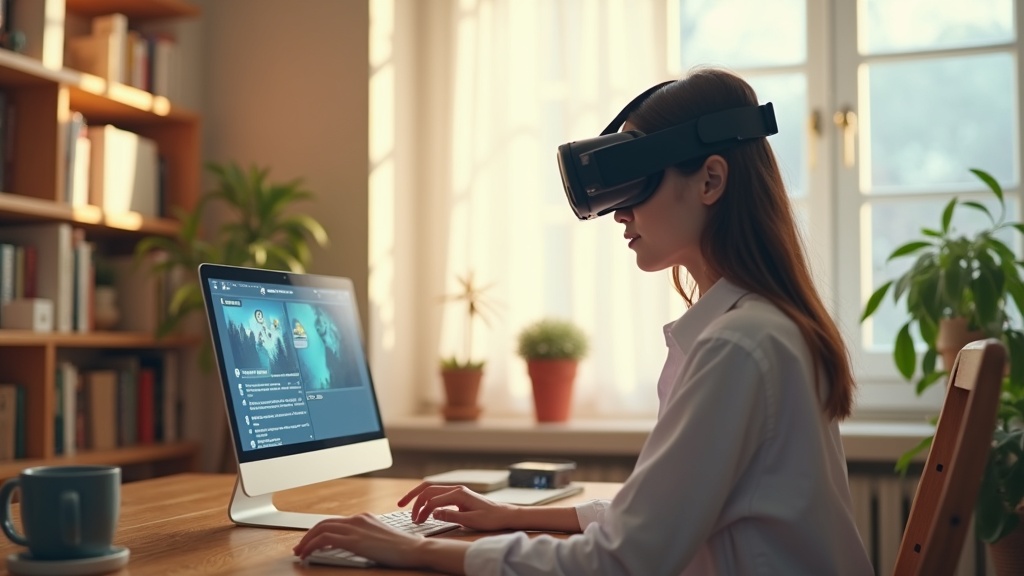
Your Apple Vision Pro should unlock global entertainment, but when your VPN blocks YouTube TV streaming, it feels like paying for a premium ticket to a locked theater. VPN streaming issues are frustratingly common with new devices, but the fix is often simpler than you think. This guide will walk you through the exact steps to get your VPN working with YouTube TV on your Vision Pro, from basic troubleshooting to advanced configuration.
What you’ll learn:
- Why YouTube TV often blocks VPN connections and how to bypass it.
- Step-by-step fixes for the most common VPN streaming errors.
- How to choose a VPN provider that consistently works with streaming services.
Why YouTube TV Blocks Your VPN Connection
YouTube TV, like many streaming services, uses sophisticated technology to detect and block VPN traffic. They do this to enforce regional licensing agreements. When you connect through a VPN, YouTube TV sees an IP address from a data center or a known VPN server pool instead of a typical residential connection. This triggers their security systems, resulting in error messages like “Your location could not be determined” or a complete failure to load content. Successful VPN streaming requires a provider that can mimic a regular internet connection and regularly refreshes its IP addresses to stay ahead of these blocks.
Step-by-Step Troubleshooting for VPN Streaming on Apple Vision Pro
Before you switch VPNs, run through these fixes first. One of them is likely the solution.
1. Check Your VPN Server Location
YouTube TV is only available in the United States. If your VPN is connected to a server in the UK, Germany, or anywhere else, the service will not work. Open your VPN app on your Vision Pro and ensure you are connected to a server located within the U.S. For the best performance, choose a city like New York, Los Angeles, or Chicago.
2. Clear Your Browser Cache and Data
Your Safari browser stores location data and cookies that can conflict with your new VPN connection. To ensure a clean slate:
- Open Settings on your Vision Pro.
- Navigate to Safari.
- Scroll down and select Clear History and Website Data.
- Confirm your choice.
After clearing the data, reconnect to your VPN and try YouTube TV again.
3. Try a Different VPN Protocol
The protocol is the method your VPN uses to secure your connection. Some, like WireGuard, are fast but can be easier for streaming services to detect. Others, like OpenVPN, can be more stealthy. Go into your VPN app's settings and experiment with different protocols. Switching from WireGuard to IKEv2 or OpenVPN (if available) can often resolve VPN streaming blocks.
4. Enable Obfuscation or Stealth Mode
Many top-tier VPNs offer a special feature designed specifically for this problem. It might be called “Obfuscated Servers,” “Stealth VPN,” or “NoBorders Mode.” This technology disguises your VPN traffic to make it look like regular internet traffic, effectively hiding it from YouTube TV's detection systems. Check your VPN app for this feature and turn it on.
What to Do If Basic Fixes Don't Work
If you've tried everything above and YouTube TV still isn't working, the problem is likely your VPN provider. Not all VPNs are created equal for streaming. Free or low-quality VPNs have IP address pools that are quickly identified and blacklisted by YouTube TV. Your only real solution is to upgrade to a premium VPN known for its reliability with streaming services.
Look for a provider with these key features:
- Proven Streaming Support: A public track record of working with YouTube TV, Netflix, Hulu, etc.
- Dedicated Streaming Servers: Specialized servers optimized to bypass geo-blocks.
- Strong Obfuscation: Advanced technology to hide VPN use.
- Fast Speeds: Essential for buffer-free HD and 4K streaming on your Vision Pro.
Best VPN This Month for Streaming: After extensive testing, ExpressVPN consistently tops our list for unblocking YouTube TV. Its proprietary Lightway protocol and regularly refreshed IP addresses make it incredibly effective for VPN streaming on new devices like the Apple Vision Pro.
Choosing the Right VPN for Apple Vision Pro and YouTube TV
Your choice of VPN is the most critical factor for a seamless streaming experience. Based on our latest tests, here are the top performers.
NordVPN is another excellent choice, boasting a massive network of obfuscated servers and the fast NordLynx protocol. It reliably accesses YouTube TV and other major platforms.
For those on a budget, Surfshark offers incredible value. It provides unlimited simultaneous connections, Camouflage Mode to hide your VPN activity, and consistently unblocks YouTube TV.
You can explore our detailed analysis in our full VPN reviews to compare features and performance head-to-head.
Final Checklist for Flawless Streaming
To ensure your VPN streaming on Apple Vision Pro works every time, make this your pre-streaming ritual:
- Connect to a U.S. server on your VPN.
- Enable obfuscation or stealth mode if available.
- Clear your Safari browser history and data.
- Open YouTube TV and log in.
VPN streaming hiccups on new hardware like the Vision Pro are common, but they are almost always solvable. The combination of the right troubleshooting steps and a high-quality VPN provider is the key to unlocking a world of content. Don't let geo-restrictions limit your entertainment—take control of your connection today.
Ready to end the buffering and error messages? Get ExpressVPN now and start watching YouTube TV on your Apple Vision Pro without restrictions.





Join the discussion
Have a question or a fix to add? Share it below.