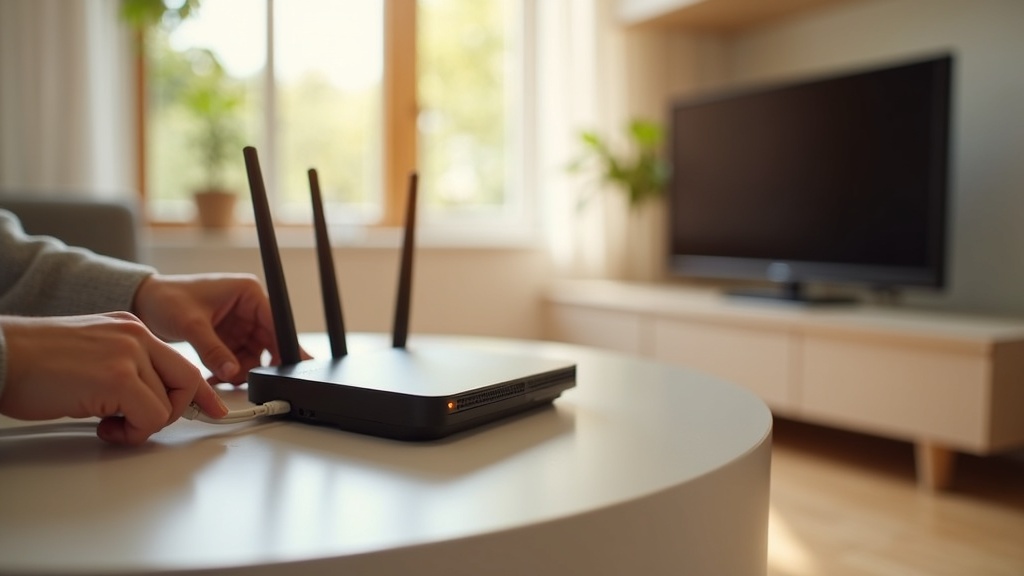
Your VPN Chromecast setup isn’t working with Disney Plus, leaving you staring at an error code instead of the latest Star Wars series. This common frustration stems from how Chromecast operates independently from your phone or computer’s VPN connection. This guide will walk you through exactly why this happens and provide proven solutions to get your VPN working with Chromecast for Disney Plus, all while ensuring your DNS leak protection is active.
What you’ll learn:
- Why your VPN and Chromecast refuse to cooperate with Disney Plus
- Step-by-step methods to fix the connection, including router-level setups
- How to verify your DNS leak protection is actually working
Why Your VPN Chromecast Setup Fails with Disney Plus
Understanding the “why” is the first step to a permanent fix. Your Google Chromecast doesn’t run VPN software itself. When you cast Disney Plus from your phone, the Chromecast bypasses your phone’s VPN connection and fetches content directly from your Wi-Fi router. Since your router likely has your real, geo-located IP address, Disney Plus detects the mismatch and blocks the stream.
This creates a double problem: not only can you not access your desired content, but your entire streaming session might be happening outside your VPN’s encrypted tunnel, potentially exposing your DNS queries to your Internet Service Provider.
The DNS Leak Risk in Casting
When you cast a show, your Chromecast uses your router’s DNS settings to find Disney Plus’s servers. If your VPN isn’t configured at the router level, these DNS requests go to your ISP’s servers instead of your VPN’s private, secure DNS. This is a classic DNS leak, which undermines the very privacy you’re using a VPN to achieve. It’s a critical issue that goes beyond just streaming.
Proven Methods to Fix VPN on Chromecast for Disney Plus
You have several effective strategies to resolve this. The best one for you depends on your technical comfort and equipment.
Method 1: Install the VPN Directly on Your Router
This is the most effective and permanent solution. By installing your VPN directly on your Wi-Fi router, every device connected to your network—including your Chromecast—benefits from the encrypted connection and new IP address.
How to do it:
- Check if your router is compatible with VPN firmware like DD-WRT or if your VPN provider offers a dedicated router app. Many modern routers support this.
- Follow your VPN provider’s specific setup guide for router installation. This usually involves logging into your router’s admin panel and entering your VPN credentials.
- Once configured, reconnect your Chromecast to the newly secured Wi-Fi network. It will now appear to be in the location of your VPN server, granting you full access to Disney Plus libraries.
This method also automatically secures all DNS requests, providing robust DNS leak protection for your entire household’s internet traffic.
Method 2: Use Smart DNS as an Alternative
If router configuration seems daunting, a Smart DNS proxy can be a simpler alternative for streaming. Services like Surfshark offer this feature. A Smart DNS doesn’t encrypt your traffic like a VPN, but it tricks streaming services like Disney Plus into thinking you’re in a different country by rerouting only the location-specific data.
Important Note: A Smart DNS does not provide the security and privacy of a VPN. Your internet traffic remains unencrypted. Use this method only if your sole goal is accessing geo-blocked content and you are on a trusted network.
Method 3: Screen Mirroring from Your Device
For a quick, temporary fix, you can mirror your entire phone or computer screen to the Chromecast. Since the Disney Plus app is running entirely on your VPN-protected device and you’re just projecting the screen, the Chromecast’s own connection becomes irrelevant.
The downside? Screen mirroring can sometimes result in lower video quality and audio sync issues compared to native casting. It’s a useful workaround, but not a long-term solution.
Verifying Your DNS Leak Protection
After you’ve set up your VPN, especially via a router, you must confirm it’s working correctly. A DNS leak would mean your online activity is still visible.
How to test for DNS leaks:
- Connect your device to your VPN-enabled network.
- Visit a DNS leak test website (like dnsleaktest.com).
- Run a standard or extended test.
- The results should only show DNS servers associated with your VPN provider. If you see servers from your ISP or other unknown entities, you have a DNS leak.
If a leak is detected, go back into your router’s VPN settings and ensure the option to “Use VPN DNS” or a similar setting is enabled. This forces all DNS queries through the VPN’s secure tunnel.
Choosing the Right VPN for Your Chromecast
Not all VPNs are created equal for this specific task. You need a service that offers reliable router support, strong unblocking capabilities for Disney Plus, and built-in DNS leak protection.
Best VPN this month: ExpressVPN is a top contender for Chromecast users. It offers detailed, easy-to-follow router setup guides, consistently bypasses Disney Plus geo-restrictions, and has a proven, automatic kill switch and DNS leak protection to keep your data safe.
Other excellent options include NordVPN, known for its robust security features and SmartPlay technology, and Surfshark, which offers unlimited simultaneous connections, perfect for securing every device in your home.
For a deeper look at how these services compare, check out our detailed VPN comparisons.
Stream Securely Without the Hassle
Fixing your VPN Chromecast issues with Disney Plus is entirely achievable. By installing the VPN on your router, you create a seamless, secure environment where every device is protected and geo-restrictions are a thing of the past. Remember to always run a DNS leak test after setup to ensure your privacy isn’t being compromised. Don’t let technical glitches interrupt your streaming—take five minutes to configure your router VPN and enjoy a world of content securely.
Ready to end the streaming errors? Secure your entire home network with a VPN on your router today and start watching your favorite shows without limits.





Join the discussion
Have a question or a fix to add? Share it below.