That moment when your champion freezes mid-dash during a crucial teamfight is every League of Legends player's nightmare. The culprit is often high ping and packet loss, turning your ranked climb into a frustrating slideshow. This guide will help you diagnose and fix these lag issues, ensuring your PC connection is as reliable as your mechanics. You'll learn why VPNs can sometimes be the problem, how to optimize your setup, and when a different VPN might actually be the solution.
- Why your VPN might be causing high ping and packet loss.
- Step-by-step troubleshooting to stabilize your connection.
- How to choose a gaming-optimized VPN for a smoother experience.
Why Your VPN Causes High Ping in League of Legends
Using a VPN reroutes your internet traffic through a remote server before it reaches the game server. This extra hop adds physical distance and processing time, which directly translates to latency, or high ping. Think of it like taking a detour on your way to work; it will almost always take longer. The VPN server's own load and the quality of its connection to the game server also play a huge role. If that server is overcrowded or geographically poorly placed, you'll experience significant packet loss, where chunks of game data fail to arrive, causing stutters and rubber-banding.
The Difference Between Ping and Packet Loss
It's crucial to understand what you're fighting. Ping (or latency) is the reaction time of your connection, measured in milliseconds (ms). A low ping means quick responses. Packet loss occurs when data packets traveling between your PC and the game server get lost along the way, resulting in choppy gameplay and actions that don't register. You can have a decent ping but still suffer from packet loss, making the game feel unplayable.
Quick Fixes for VPN-Induced Lag and Packet Loss
Before you give up on your VPN, try these immediate steps to reduce your high ping.
1. Connect to a Server Closer to the Game Server
League of Legends has servers in specific regions (e.g., NA, EUW). If you're playing on the North American server, connect your VPN to a server in the US or Canada, not Europe. Minimizing the physical distance between your VPN server and the Riot Games server is the single most effective way to lower ping.
2. Use a Wired Ethernet Connection
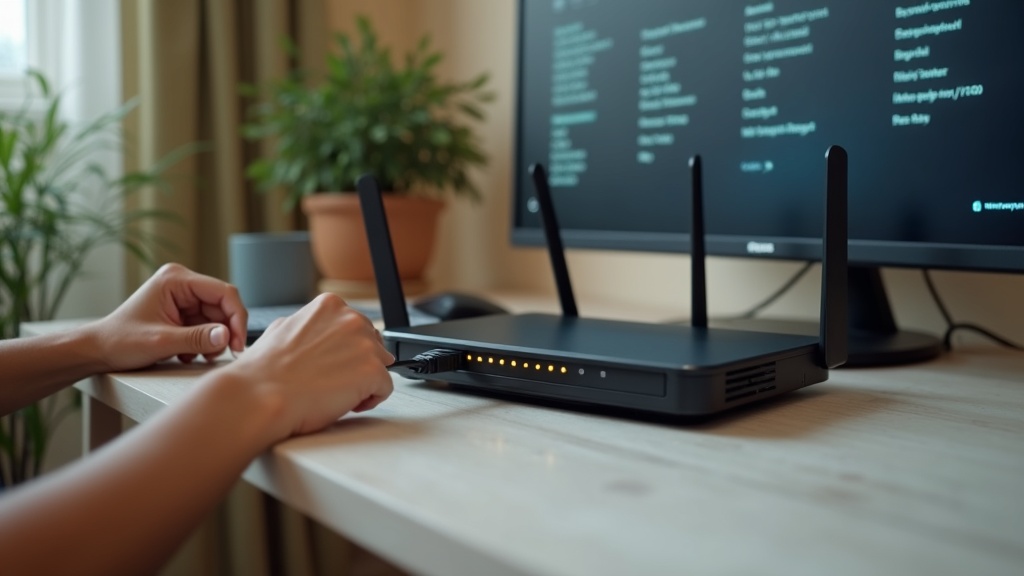
Wi-Fi is susceptible to interference and signal drops, which exacerbate packet loss. For the most stable connection possible, plug an Ethernet cable directly from your PC to your router. This simple change can dramatically reduce instability.
3. Change Your VPN Protocol
VPN protocols handle your data differently. Some prioritize speed, while others focus on security. For gaming, you want a lightweight protocol like WireGuard, which is designed for high performance and low latency. If your VPN offers it, switch from OpenVPN to WireGuard in the settings and test your ping again.
When to Consider a Different VPN Provider
If you've tried all the optimizations and still face a high ping, the issue might be your VPN provider itself. Not all VPNs are built for gaming. Look for these features in a gaming-friendly VPN:
- Specialized Gaming Servers: Some providers have servers optimized specifically for gaming traffic.
- WireGuard Protocol: As mentioned, this is a game-changer for speed and reducing high ping.
- Extensive Server Network: A large selection of servers increases your chances of finding one close to your game server.
- Minimal Speed Loss: A quality VPN will have a minimal impact on your base internet speeds.
Best VPN this month: For consistently low ping and reliable connections in League of Legends, NordVPN stands out with its NordLynx protocol (built on WireGuard) and a massive global server network.
Advanced Troubleshooting: Beyond the VPN
Sometimes, the VPN is only part of the problem. Other factors on your PC or network can contribute to a high ping.
Check for Bandwidth-Hogging Applications
Close any applications that might be using your bandwidth in the background. This includes streaming services, cloud storage syncs (like Dropbox or Google Drive), and torrent clients. Even a browser with too many tabs open can consume enough resources to affect your game.
Configure Your Router's QoS Settings
Quality of Service (QoS) is a router feature that lets you prioritize traffic from specific devices or applications. You can set your PC's traffic to “High Priority” or, even better, prioritize traffic for League of Legends. This tells your router to ensure game data gets through first, reducing packet loss during network congestion. You can find this setting in your router's admin panel, typically under “Advanced” or “Gaming” sections.
For more detailed guides on optimizing your entire setup for privacy and performance, visit our privacy guides.
Choosing the Right VPN for Competitive Gaming
Your choice of VPN can make or break your ranked experience. A service like Surfshark is a strong contender, offering the speedy WireGuard protocol and unlimited simultaneous connections, so you can game on your PC while other devices use the VPN without conflict. Alternatively, ExpressVPN is renowned for its consistent speeds and reliable network, which is crucial for avoiding those game-losing spikes of high ping.
Before committing, check if the VPN offers a money-back guarantee. This allows you to test the service with League of Legends during peak hours to ensure it meets your latency requirements. You can compare these and other top providers on our VPN comparisons page.
Don't let a poor connection cost you LP. A high ping and packet loss are fixable problems. By methodically troubleshooting your setup and choosing a VPN built for speed, you can create a rock-solid connection that lets your skills do the talking. Take control of your latency—test a gaming-optimized VPN today and experience a smoother, more responsive League of Legends.





Join the discussion
Have a question or a fix to add? Share it below.