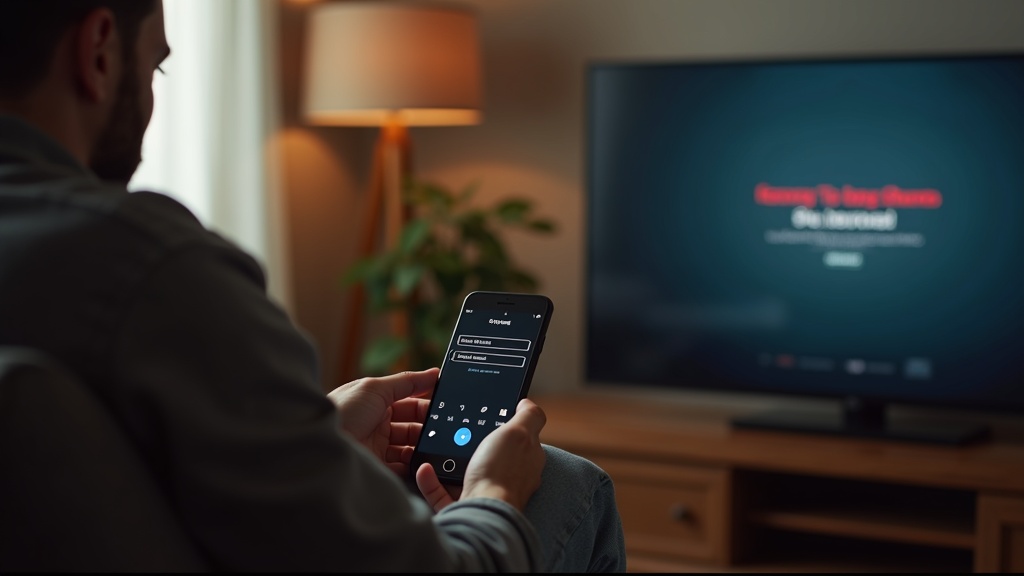
You've settled in for movie night, but your VPN Disney Plus setup on the Hisense U8N is blocking access instead of unlocking it. This common frustration occurs because Disney Plus actively blocks IP addresses from known VPN servers to enforce regional licensing. This guide will walk you through the specific steps to get your VPN working seamlessly with Disney Plus on your Hisense U8N TV, from simple reboots to advanced troubleshooting.
What you’ll learn:
- Why Disney Plus blocks VPNs and how to bypass it
- Step-by-step fixes for your Hisense U8N
- The best VPNs proven to work with Disney Plus
Why Your VPN Disney Plus Combo Fails on Hisense U8N
Disney Plus uses sophisticated technology to detect and block VPN traffic. When you connect through a VPN, your internet traffic is routed through a server in a different location, giving you a new IP address. Disney Plus maintains a constantly updated blacklist of these VPN-associated IPs. If your VPN server's IP is on that list, you'll see an error code or be unable to load content. This isn't a fault with your Hisense U8N's hardware; it's a digital cat-and-mouse game between streaming services and VPN providers.
Quick Fixes to Try First
Before diving into complex solutions, run through these simple steps. They resolve a majority of connection issues.
Restart Your Devices
It sounds basic, but power cycling your Hisense U8N TV, your router, and your VPN device (if using a router-level VPN) can clear temporary glitches and refresh all network connections. Unplug each device from power for 60 seconds before plugging them back in.
Check Your VPN Connection
Ensure your VPN is actually connected and running. Sometimes, the VPN client may show as active, but the connection has dropped. Disconnect and reconnect to a server. Also, verify that your internet connection is stable without the VPN enabled.
Clear the Disney Plus App Cache and Data
On your Hisense U8N, go to Settings > Apps > Disney Plus. From there, select “Clear Cache” and “Clear Data.” This resets the app and can remove corrupted temporary files that might be causing conflicts with your VPN Disney Plus setup. You will need to log back into the app afterward.
Advanced Troubleshooting for Stubborn VPN Disney Plus Blocks
If the quick fixes don't work, it's time to get more strategic. These methods target the core reasons for VPN detection.
Switch Your VPN Server Location
The most common solution is to simply connect to a different server in the same country. The IP address of your current server is likely blacklisted by Disney Plus. Your VPN provider may even have specific servers labeled for streaming; look for those in your VPN app. If one server in the US doesn't work, try another.
Use a Dedicated IP Address
Some VPNs offer a “dedicated” or “static” IP address. This is an IP that only you use, making it far less likely to be flagged and added to Disney Plus's blacklist. While this is often a premium add-on, it's one of the most reliable ways to ensure uninterrupted streaming.
Check for VPN Leaks
A WebRTC or DNS leak can expose your real location even when your VPN is active, causing Disney Plus to block you. Use our free online privacy tools to check for leaks. If a leak is detected, contact your VPN's support team for help securing the connection.
Reinstall the VPN and Disney Plus Apps
On your Hisense U8N, completely uninstall both the VPN app (if installed directly on the TV) and the Disney Plus app. Then, reinstall them from the official app store. This ensures you have the latest, cleanest versions without any file corruption.
The Best VPNs for Disney Plus on Hisense U8N
Not all VPNs are created equal, especially when it comes to bypassing the robust geo-blocks of Disney Plus. You need a service with a proven track record, fast speeds for 4K streaming, and reliable apps.
Here’s a look at the top contenders:
- ExpressVPN: Our top pick. It reliably unblocks Disney Plus, offers incredibly fast connections perfect for UHD streaming on your Hisense U8N, and has a simple app that's easy to install and use.
- NordVPN: A powerhouse with specialized “Obfuscated Servers” designed to hide VPN traffic, making it harder for Disney Plus to detect and block your connection.
- Surfshark: An excellent budget-friendly option that offers unlimited simultaneous connections, meaning you can secure your Hisense U8N, phone, laptop, and more under one account.
For a deeper dive, check out our full VPN reviews to compare features and performance.
Setting Up Your VPN on a Hisense U8N
The Hisense U8N runs on Google TV, which gives you a couple of straightforward options for getting your VPN running.
Method 1: Install the VPN App Directly
The easiest method is to install your VPN's app directly from the Google Play Store on your TV. Most major VPN providers, including our top picks, offer native Android TV/Google TV apps. Simply search for your VPN in the Play Store, install it, log in, and connect to a server.
Method 2: Set Up a VPN on Your Router
If your VPN doesn't have a dedicated TV app, or you want to protect every device on your network (including game consoles and smart devices), installing the VPN on your router is the way to go. This encrypts all internet traffic leaving your home. This process varies by router model, so consult your VPN's support site for specific setup guides.
When All Else Fails: Contact Support
If you've tried everything and your VPN Disney Plus access is still blocked, your next step should be to contact your VPN's customer support. They have the most up-to-date information on which servers are working and can often provide a solution specific to their service. A good support team is a hallmark of a quality VPN provider.
Getting your VPN to work flawlessly with Disney Plus on a Hisense U8N is entirely achievable. The key is using a reliable VPN service, being willing to switch servers, and methodically working through the troubleshooting steps. Don't let geo-restrictions ruin your streaming experience. Secure your connection with a VPN built for streaming today and enjoy a world of content on your terms.





Join the discussion
Have a question or a fix to add? Share it below.