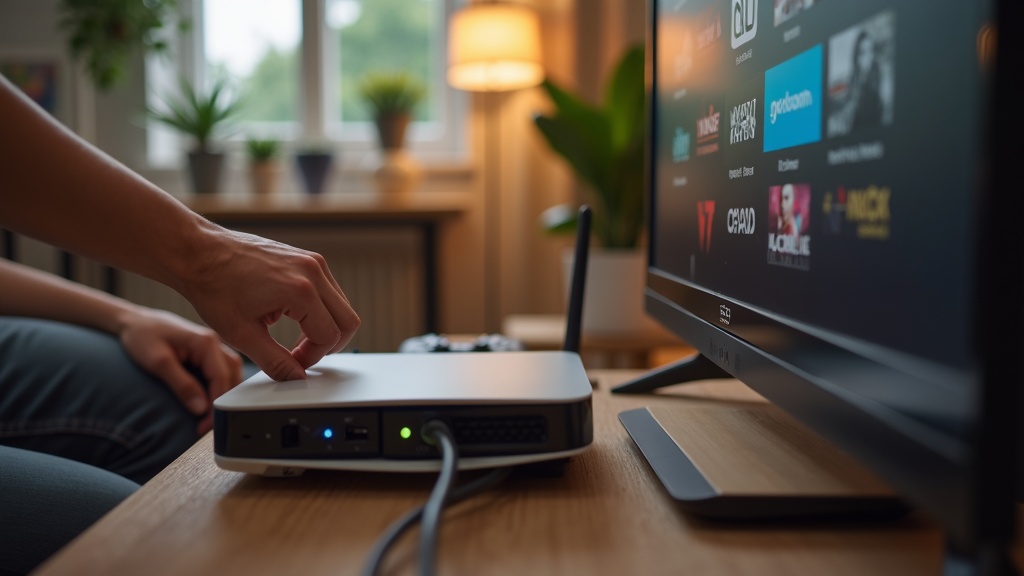
Your VPN PS5 setup should unlock global Netflix libraries and protect your gaming sessions, but connection failures and DNS leaks can leave you exposed. Whether you’re facing error codes, slow streaming, or privacy concerns, this guide will help you troubleshoot your VPN connection while maintaining security. You’ll learn to fix common issues, configure DNS settings properly, and choose the right VPN for PlayStation 5 compatibility.
- How to properly set up a VPN on your PS5 for Netflix streaming
- Step-by-step solutions for connection failures and DNS leaks
- Which VPN services work best with PlayStation 5 and streaming platforms
Why Your VPN PS5 Setup Might Be Failing
Connecting a VPN to your PlayStation 5 isn’t as straightforward as installing an app on your phone or computer. Since Sony doesn’t offer native VPN support on the PS5, you need to use alternative methods that can introduce complications. The most common setup involves configuring the VPN on your router or using your computer as a hotspot, both of which require specific technical steps.
Netflix’s sophisticated VPN detection systems present another major hurdle. The streaming giant actively blocks IP addresses associated with VPN servers, which means even if your connection appears successful, you might still see the proxy error message. This cat-and-mouse game requires VPN providers to constantly update their server IPs to stay ahead of Netflix’s blocks.
DNS leaks represent the most concerning failure point for privacy-conscious users. When your PS5 bypasses the VPN’s DNS servers and uses your ISP’s default settings, your online activity becomes visible to your internet provider and potentially other third parties. This undermines the entire purpose of using a VPN for privacy protection.
Setting Up Your VPN PS5 Connection Correctly
The router method provides the most comprehensive VPN PS5 solution since it protects all devices connected to your network. First, access your router’s administration panel (usually through 192.168.1.1 or 192.168.0.1 in your browser) and look for VPN client settings. You’ll need to enter configuration details provided by your VPN service, which typically include server addresses, authentication credentials, and protocol selection.
If router configuration seems too technical, the computer sharing method offers a simpler alternative. Connect your computer to the VPN, then share that connection via Ethernet or Wi-Fi hotspot. On Windows, navigate to Network & Internet settings > Mobile hotspot, then select your VPN connection to share. Mac users can use Internet Sharing in System Preferences to bridge the VPN connection to their PS5.
For the most streamlined experience, consider investing in a VPN-compatible router. Many modern routers come with pre-installed VPN clients or support firmware like DD-WRT that simplifies the setup process. This approach eliminates the need to keep a computer running constantly just to maintain your VPN connection.
Choosing the Right VPN Protocol
Your choice of VPN protocol significantly impacts both connection stability and streaming performance. WireGuard typically offers the best balance of speed and security for gaming and streaming, while OpenVPN provides reliable compatibility with most routers. Avoid older protocols like PPTP, which lack proper encryption and can trigger Netflix blocks more easily.
Fixing Netflix Streaming Issues on PS5
When Netflix detects and blocks your VPN, you’ll typically encounter error codes like M7111-1331 or a message about using an unblocker or proxy. The most effective solution is switching to a different server location within your VPN application. Top-tier VPN services maintain specialized servers optimized for streaming that regularly rotate IP addresses to avoid detection.
If server switching doesn’t resolve the issue, clear your PS5’s cache and cookies. Navigate to Settings > Storage > Media, select your streaming apps, and choose “Delete.” Then restart your console and relaunch Netflix. This removes temporary data that might be revealing your actual location to Netflix’s tracking systems.
Sometimes the problem stems from DNS-based location detection. Even with a working VPN connection, if your PS5 uses your ISP’s DNS servers, Netflix can determine your true location. Ensure your router or connection sharing setup forces the use of your VPN provider’s DNS servers rather than automatic configuration.
Preventing DNS Leaks on Your PlayStation 5
DNS leaks represent a serious privacy vulnerability that defeats the purpose of using a VPN. When your gaming console sends DNS requests outside the encrypted VPN tunnel, your internet activity becomes visible to your ISP and potentially other observers. Fortunately, preventing DNS leaks on your VPN PS5 setup requires just a few careful configurations.
First, verify that your VPN provider offers DNS leak protection. Most quality services include this feature automatically, but it’s worth confirming in your account settings. After establishing your VPN connection, visit a DNS leak test website (using your PS5’s browser) to check whether your ISP’s DNS servers appear in the results. If they do, you have a leak that needs addressing.
For router-based setups, manually configure your PS5’s network settings to use your VPN provider’s DNS servers instead of obtaining them automatically. In your PS5 network settings, choose “Set Up Internet Connection,” select your connection type, choose “Custom” for settings, then manually enter the DNS addresses provided by your VPN service when you reach that step.
Best VPN Services for PS5 and Netflix
Not all VPNs can reliably handle the dual challenges of PlayStation compatibility and Netflix unblocking. The best services for your VPN PS5 setup offer dedicated router support, consistently refresh their streaming-optimized servers, and include robust DNS leak protection.
NordVPN offers SmartDNS functionality specifically designed for streaming devices like the PS5, along with reliable connection speeds for gaming. Their Meshnet feature can also create secure connections between devices without complex router configuration.
Surfshark provides unlimited simultaneous connections, making it ideal for households with multiple gaming consoles and streaming devices. Their CleanWeb feature blocks ads and malware while maintaining streaming compatibility.
When evaluating VPNs for your PS5, prioritize services with clear setup guides for routers and connection sharing. Check our VPN reviews for detailed performance tests specifically measuring streaming capability and gaming performance.
Troubleshooting Common VPN PS5 Connection Problems
If your VPN connection drops frequently during gaming sessions, the issue might be related to NAT type restrictions. PlayStation Network requires specific NAT types for optimal connectivity, and VPNs can sometimes interfere with this. Try switching VPN servers or protocols to resolve persistent connection issues.
Slow streaming speeds with your VPN active typically indicate server congestion or suboptimal routing. Connect to VPN servers geographically closer to your actual location, or try servers specifically labeled for streaming. Most premium VPN services display server load indicators to help you choose less crowded options.
For persistent problems, consider using your VPN’s obfuscation or stealth features if available. These technologies disguise VPN traffic as regular internet traffic, making it harder for both your ISP and streaming services to detect and throttle your connection. This can significantly improve both stability and speeds for gaming and streaming.
Maintaining Your VPN PS5 Setup
Regular maintenance ensures your VPN continues working smoothly with both gaming and streaming. Update your router firmware periodically, as these updates often include security patches and performance improvements for VPN functionality. Similarly, keep your VPN client updated on any computers used for connection sharing.
Monitor your VPN provider’s announcements about server changes and Netflix compatibility. The best services maintain dedicated streaming servers and quickly address blocks when they occur. Many providers offer 24/7 customer support specifically to help with setup and troubleshooting for gaming consoles and streaming devices.
Consider testing your setup monthly using DNS leak tests and trying to access region-locked Netflix content. This proactive approach helps you identify and resolve issues before they disrupt your streaming or compromise your privacy. Our privacy guides offer additional tips for maintaining security across all your devices.
With the right VPN service and proper configuration, you can enjoy buffer-free Netflix streaming from any region while keeping your gaming sessions private and secure. Take control of your PlayStation 5 connectivity today by choosing a VPN designed for both performance and protection.





Join the discussion
Have a question or a fix to add? Share it below.