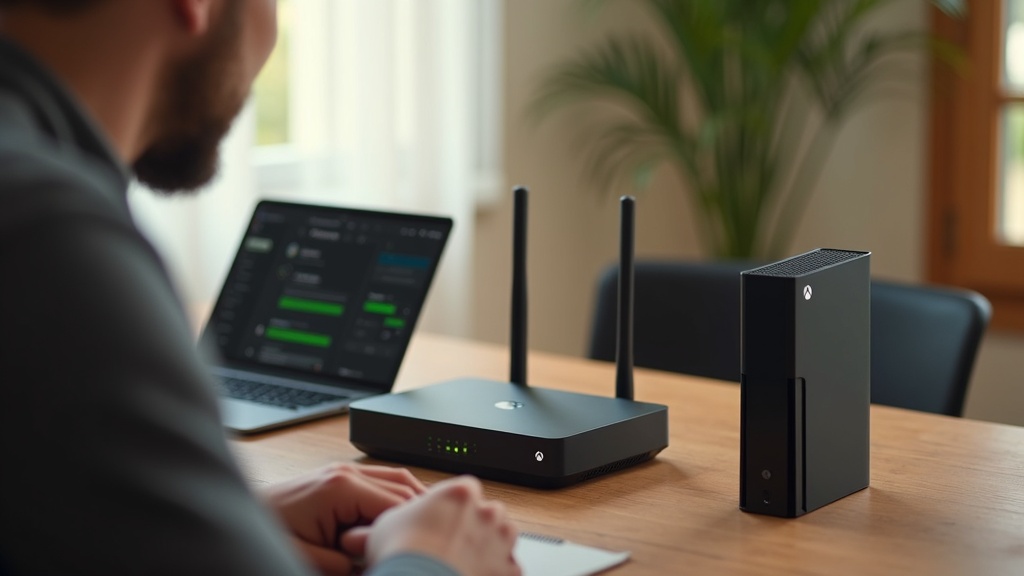
Your Xbox Series X Game Pass streaming session just hit a frustrating roadblock: your VPN's split tunneling feature isn't working as expected, leaving you with a choice between laggy gameplay or no privacy at all. This guide will walk you through the exact steps to diagnose and fix split tunneling issues, ensuring your gaming traffic stays on your local network for maximum speed while the rest of your data remains securely encrypted.
What you’ll learn:
- Why split tunneling fails on Xbox and how to troubleshoot it.
- Step-by-step fixes for router, app, and network configuration problems.
- How to verify your setup is working correctly for a seamless Game Pass experience.
Why Xbox Split Tunneling Gets Tricky
Split tunneling is a powerful VPN feature that lets you choose which apps or devices use the encrypted VPN tunnel and which connect directly to the internet. For Xbox Game Pass streaming, you ideally want your game traffic to bypass the VPN to minimize latency, while other activities on your network remain protected.
The complication arises because the Xbox console itself doesn't run VPN apps. Your VPN connection is typically handled at the router level, which makes application-specific split tunneling impossible directly on the console. Instead, you need to implement a form of device-level split tunneling, where your Xbox is excluded from the VPN tunnel while other devices on your network are not.
Common Causes of Split Tunneling Failure
Several factors can prevent your split tunneling setup from working correctly. Understanding these is the first step toward a fix.
- Router Firmware Limitations: Many consumer-grade routers lack advanced split tunneling features in their firmware.
- Incorrect Device Identification: Your router may not be correctly identifying your Xbox's IP or MAC address for exclusion.
- VPN Protocol Conflicts: Certain VPN protocols may not play nicely with the port forwarding and network address translation (NAT) required for Xbox Live.
- DNS Leaks: Even if traffic is routed correctly, DNS queries might still go through the VPN, causing conflicts.
Step-by-Step Troubleshooting for Split Tunneling
Follow these methods in order to resolve your split tunneling issues. Start with the simplest solution first.
Method 1: Configure Split Tunneling at the Router
This is the most reliable method for Xbox consoles. You'll need to access your router's administration panel.
- Find your Xbox's IP and MAC address in the network settings of the console.
- Log into your router's admin interface (usually via a web browser).
- Look for features labeled “VPN Passthrough,” “Static IP Assignment,” or “Device Exclusion.”
- Assign a static IP to your Xbox using its MAC address.
- Add this static IP to your router's VPN exclusion or split tunneling list, if available.
If your router's native firmware doesn't support this, you might need to flash custom firmware like DD-WRT or AsusWRT-Merlin, which offer more granular VPN control. For a simpler solution, consider a VPN like NordVPN that offers a feature called Meshnet, which can help create more flexible network configurations.
Method 2: Use a VPN with Smart DNS or Gaming Features
Some VPN providers offer specialized features that achieve a similar result to split tunneling for streaming devices.
ExpressVPN, for example, offers a MediaStreamer DNS service. This isn't a full VPN, but a Smart DNS that can help with geo-restricted content without rerouting all your traffic, which can be perfect for Game Pass streaming. You configure these DNS addresses directly on your Xbox, leaving other devices on your network to use the full VPN connection.
Other providers, like Surfshark, offer a “Bypasser” feature (their name for split tunneling) on their router app, giving you more control than standard router firmware.
Method 3: The Two-Router Solution
If software solutions fail, a hardware setup is a bulletproof alternative. This involves creating two separate Wi-Fi networks in your home.
- Connect one router directly to your modem and install your VPN on it. This will be your “secure” network.
- Connect a second router to the first (or directly to the modem if possible) and leave it without a VPN. This will be your “gaming” network.
- Connect your Xbox Series X to the non-VPN “gaming” network.
- Connect your other devices (computers, phones) to the VPN-enabled “secure” network.
This physically separates the traffic, guaranteeing your Xbox gets a direct, low-latency connection while the rest of your household traffic is protected.
Verifying Your Split Tunneling is Working
After applying a fix, you need to confirm it's working. Don't just assume—test it.
- Check Your IP Address on Xbox: Use the Edge browser on your Xbox to visit a site like “whatismyipaddress.com”. The location shown should be your real, local IP, not the VPN server's location.
- Run a Network Test on Xbox: Go to Settings > General > Network settings > Test network connection. Your NAT type should be “Open” or “Moderate,” not “Strict,” which can indicate VPN interference.
- Test Game Pass Streaming: Launch a cloud game from Game Pass. If the split tunneling is working, you should experience significantly reduced input lag and fewer visual artifacts compared to streaming through a VPN.
Best VPN for Advanced Router Features
Not all VPNs are created equal when it comes to router compatibility and advanced features like split tunneling. For users who need powerful, configurable options, the right VPN makes all the difference.
Best VPN This Month
NordVPN stands out for its robust router support. It offers detailed setup guides for a wide range of router models and firmware, including custom options. Its Threat Protection feature also adds a layer of security on the router level, blocking malicious sites even for devices excluded from the VPN tunnel. This is ideal for keeping your Xbox safe while it enjoys a direct connection for Game Pass.
For more information on how we evaluate these services, check out our detailed VPN testing methodology.
Keep Gaming Smoothly and Securely
A malfunctioning split tunneling setup can ruin the seamless experience of cloud gaming. By systematically checking your router settings, considering VPNs with Smart DNS, or even implementing a two-router setup, you can reclaim both your privacy and your ping. The goal is a perfect harmony: your personal data stays protected by the VPN, while your Xbox Series X gets the unfiltered, high-speed bandwidth it needs for flawless Game Pass streaming.
Ready to take control of your network? Explore NordVPN's advanced router features today and set up a network that works for both your security and your gameplay.





Join the discussion
Have a question or a fix to add? Share it below.