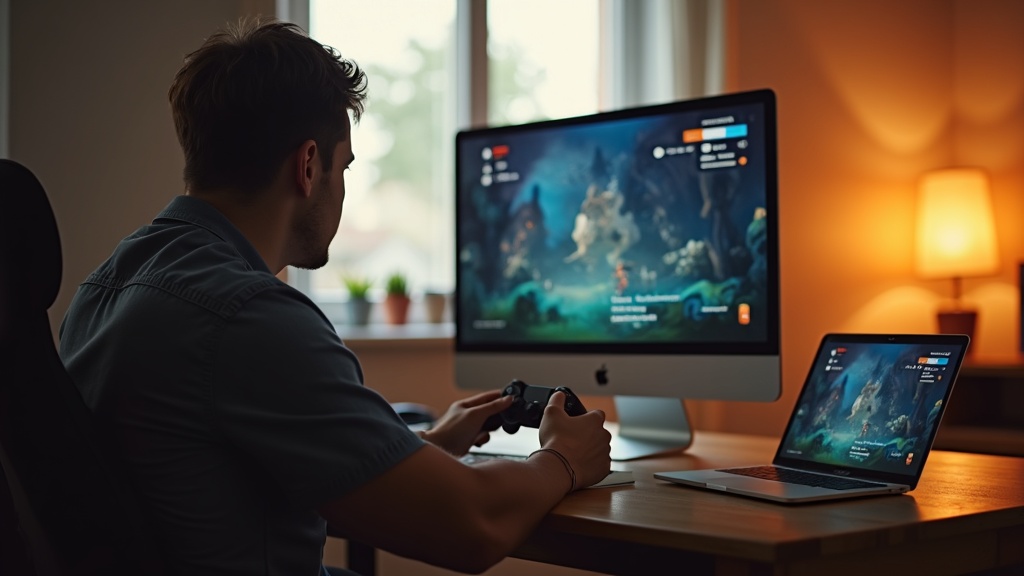
Getting your remote desktop gaming to run smoothly often hinges on one technical feature: port forwarding. Without it, you might face frustrating lag, connection timeouts, or an inability to connect to your home gaming rig from another location. This article breaks down how two popular VPNs, Mullvad VPN and Private Internet Access (PIA), handle this critical function, helping you decide which service is the right tool for your remote gaming setup. You'll get a clear, side-by-side comparison of their port forwarding capabilities, setup processes, and overall performance for gaming.
- The key differences in how Mullvad and PIA implement port forwarding.
- Step-by-step guidance for setting up port forwarding on each service.
- Which VPN delivers better stability and lower latency for a seamless remote gaming experience.
Why Port Forwarding is a Game-Changer for Remote Gaming
When you use software like Parsec, Moonlight, or Steam Remote Play to access your gaming PC from elsewhere, you're essentially creating a direct line of communication between two computers. Your home router uses a security feature called a firewall, which by default blocks unsolicited incoming connections. Port forwarding creates a specific, authorized pathway through that firewall, telling your router exactly where to send the incoming gaming data.
Without a properly configured port forwarding rule, your connection attempts can be rejected, leading to failed connections or the need for slower, relayed servers that introduce significant input lag. A VPN that supports port forwarding allows you to create this pathway even when your internet traffic is encrypted and routed through a VPN server, which is essential for both security and performance.
Mullvad VPN Port Forwarding: Simple and Transparent
Mullvad VPN has built a strong reputation on its no-nonsense approach to privacy, and its port forwarding feature reflects this philosophy. The process is remarkably straightforward.
To enable a forwarded port in the Mullvad app, you simply navigate to the “Advanced” settings, click “Manage port forwarding,” and then “Acquire a port.” The system will automatically assign you a random port number. You then take this number and enter it into the settings of your remote desktop application (e.g., in Parsec's “Custom Port” field). There's no manual configuration on your router required, as the forwarding is handled entirely by Mullvad's servers.
Key Characteristics:
- Ease of Use: The process is almost entirely automated within the app.
- Port Type: Mullvad provides temporary, random ports. They are not permanent and can change if you disconnect or switch servers, though they typically remain stable during a single session.
- Transparency: There are no hidden logs, and the feature is available to all users without complex setup.
For the gamer who values a set-and-forget solution, Mullvad's system is incredibly efficient. You can explore Mullvad VPN's features directly to see if its minimalist approach fits your style.
Potential Drawbacks for Gaming
The main limitation for remote desktop gaming is the use of random ports. Some gaming and remote access applications work best with a consistent, predictable port number. If your assigned port changes, you may need to reconfigure your client software, which can be a minor hassle.
Private Internet Access Port Forwarding: Configurable and Persistent
Private Internet Access (PIA) offers a more traditional and configurable approach to port forwarding. Unlike Mullvad's automated system, PIA allows you to request forwarding on specific ports, giving you greater control over your setup.
The process involves logging into your PIA client, navigating to the Settings, and enabling the port forwarding option. For a more granular setup, you can log into your account on the PIA website, where you can request a forward for a specific port number you choose. This port is then bound to the specific PIA server you are connected to.
Key Characteristics:
- Control: You can often choose your own port number, which is ideal for applications that require a static port.
- Persistence: The forwarded port remains assigned to your account for that specific server region until you manually release it.
- Server-Specific: It's important to note that port forwarding on PIA only works on designated servers, so you must connect to a supporting location.
This level of control is a significant advantage for gamers who need a stable, unchanging port for their remote desktop configuration. You can check out PIA's current offerings and supported servers to plan your setup.
Considering the Complexity
The trade-off for this control is a slightly more involved setup process. You need to ensure you're connected to a PIA server that supports port forwarding and manage your port assignments through the web client. For beginners, this can be more intimidating than Mullvad's one-click solution.
Side-by-Side Comparison: Mullvad VPN vs. PIA
To help you visualize the core differences, here's a direct comparison of their port forwarding features as they relate to remote desktop gaming.
| Feature | Mullvad VPN | Private Internet Access (PIA) |
|---|---|---|
| Setup Process | Fully automated in-app | Manual configuration via web client & app |
| Port Assignment | Automatic, random port | User-requested, specific port |
| Port Persistence | Temporary (per session/server) | Persistent (until manually released) |
| Best For | Gamers who want simplicity and quick setup | Gamers who need a static port for consistent configuration |
| Ease of Use | Very High | Moderate |
Performance and Reliability for Gaming
Beyond just having the feature, how does the port forwarding impact your actual gaming experience? Both VPNs generally provide stable connections, but there are nuances.
Mullvad VPN is known for its robust, high-speed network. When combined with its automated port forwarding, you typically get a low-latency connection that is excellent for real-time gaming, provided you can work with the dynamic port. The connection feels clean and direct.
PIA also boasts a massive server network. The ability to lock in a persistent port on a specific server can lead to a very reliable and consistent gaming session over multiple days. The initial setup might take a few extra minutes, but the long-term stability for a dedicated remote gaming setup can be superior.
Your choice may come down to your tolerance for setup versus your need for a permanent configuration. For those who game from multiple locations or don't want to fiddle with settings, Mullvad is ideal. For someone who has a dedicated remote gaming setup and wants it to “just work” every time without reconfiguration, PIA's persistent port forwarding is a powerful asset.
Best VPN This Month
Looking for a top-tier VPN that balances speed, security, and features? NordVPN consistently ranks high for its blazing-fast speeds and robust security, making it a fantastic all-around choice for any online activity.
Making Your Final Choice
Choosing between Mullvad VPN and Private Internet Access for port forwarding in remote desktop gaming isn't about finding a “better” VPN, but the right tool for your specific needs.
Opt for Mullvad VPN if you prize absolute simplicity, a transparent privacy policy, and a quick, automated setup. It's the “plug and play” option that gets you into your game with minimal fuss.
Choose Private Internet Access if you need granular control, a persistent port number for a stable long-term setup, and don't mind a slightly more involved configuration process. It's the “set it and forget it” option for a dedicated gaming rig.
Both services effectively solve the core problem of establishing a direct connection for remote gaming. Your decision ultimately hinges on your personal preference for convenience versus control. Whichever you choose, enabling port forwarding will transform your remote gaming from a laggy struggle into a smooth, responsive experience.
Ready to eliminate lag and secure your connection? Stop struggling with relay servers and unlock direct, low-latency gaming by setting up port forwarding with your chosen VPN today.




Join the discussion
Have a question or a fix to add? Share it below.