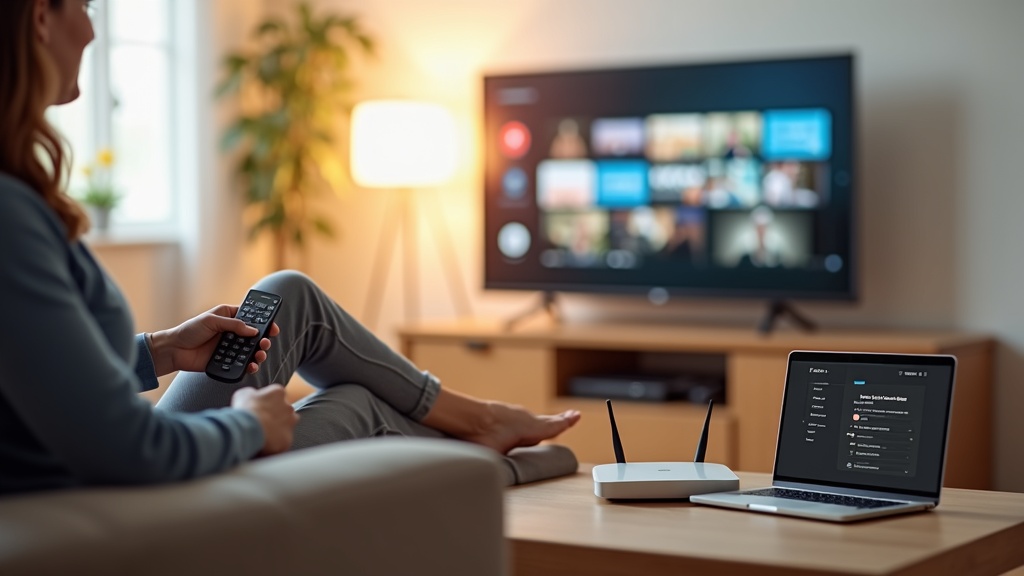
Your Roku Ultra is supposed to unlock a world of entertainment, but a VPN not working with Paramount Plus can slam that door shut. This frustrating issue is common, but it's almost always fixable. This guide will walk you through the exact steps to get your VPN connection stable and your streaming back on track, from simple reboots to more advanced router-level solutions.
What you’ll learn:
- Why your VPN gets blocked by streaming services like Paramount Plus.
- Step-by-step troubleshooting to fix a VPN not working on your Roku.
- How to configure a VPN directly on your router for seamless Roku streaming.
Why Your VPN Gets Blocked by Paramount Plus
Streaming giants like Paramount Plus invest heavily in technology to detect and block VPN traffic. They do this to enforce regional licensing agreements. When you connect through a VPN, your traffic routes through a server in another country. Paramount Plus scans for the digital fingerprints of these known VPN servers and simply refuses the connection if it detects one. This is the primary reason you face a VPN not working error. It's not that your Roku or VPN is broken; it's a digital game of cat and mouse.
Step-by-Step Troubleshooting for a VPN Not Working on Roku
Before diving into complex setups, run through these basic fixes. One of them is often the quick solution you need.
1. The Simple Restart Trio
It sounds too easy, but power cycling your devices can resolve countless glitches. Perform these steps in order:
- Restart your Roku Ultra: Go to Settings > System > System restart.
- Restart your VPN app: Fully close the application on your computer or phone and reopen it.
- Restart your router and modem: Unplug both from power for 30 seconds, then plug them back in.
After everything reboots, try connecting to Paramount Plus again. This clears temporary caches and network conflicts that can cause a VPN not working scenario.
2. Connect to a Different VPN Server
If one server is flagged by Paramount Plus, another in the same country might not be. Open your VPN application and disconnect from your current server. Then, choose a different server location in the same target country (e.g., if you were using a New York server, try a Los Angeles server). Premium services like NordVPN offer thousands of servers, increasing your chances of finding one that works.
3. Check Your VPN's Streaming Specialty Features
Not all VPNs are created equal for streaming. Leading providers have specific servers optimized to bypass geo-blocks. Look for features labeled as “Streaming Mode,” “Smart DNS,” or dedicated “Streaming Servers.” For instance, ExpressVPN is renowned for its consistent ability to access streaming platforms. Double-check your provider's support documentation to see if they have special instructions for Paramount Plus.
The Ultimate Fix: Installing a VPN on Your Router
Since Roku devices don't support native VPN apps, the most reliable method is to install the VPN directly on your router. This encrypts the internet connection for every device on your Wi-Fi network, including your Roku Ultra, eliminating the VPN not working problem at its source.
How to Set Up a VPN on Your Router
The process varies by router brand and VPN provider, but the general steps are:
- Check compatibility: First, ensure your router is compatible with VPN firmware (like DD-WRT or Tomato) or, even easier, choose a VPN that offers a dedicated router app. Surfshark is a great option here, as it allows unlimited connections and offers simple router configuration.
- Access your router's admin panel: Type your router's IP address (often 192.168.1.1 or 192.168.0.1) into a web browser and log in.
- Enter your VPN credentials: In the admin panel, find the VPN or WAN settings section. You will need to enter details provided by your VPN service, such as server addresses and your unique username/password.
- Connect and reboot: Save the settings and reboot your router. Once it's back online, every device connected to it will be using the VPN connection.
For a detailed walkthrough, visit our guide on VPN devices.
Choosing a VPN That Works with Roku and Paramount Plus
If you're still struggling, the issue might be your VPN provider. Free or low-quality VPNs are almost always detected and blocked. You need a service with a strong track record for streaming.
Best VPN this month: NordVPN consistently tops our lists for its speed, reliability, and ability to unblock Paramount Plus and other major streaming services.
Key features to look for:
- Proven Streaming Support: A history of reliably accessing geo-restricted content.
- Fast Speeds: Essential for buffer-free HD and 4K streaming.
- Router Compatibility: Easy-to-follow setup guides for routers.
- Smart DNS: An alternative method that can sometimes work where a full VPN fails.
You can compare top-performing services in our VPN comparisons.
Final Checks and Next Steps
A VPN not working on your Roku Ultra is a solvable problem. Start with the basic restarts and server switches. If those don't work, configuring your VPN at the router level is the most robust and permanent solution. This approach not only fixes your Paramount Plus issue but also secures your entire home network.
Don't let geo-restrictions interrupt your binge-watching. Take control of your streaming experience by using a premium VPN configured correctly for your setup. Get started with a VPN proven to work with Roku today and stream Paramount Plus from anywhere.





Join the discussion
Have a question or a fix to add? Share it below.