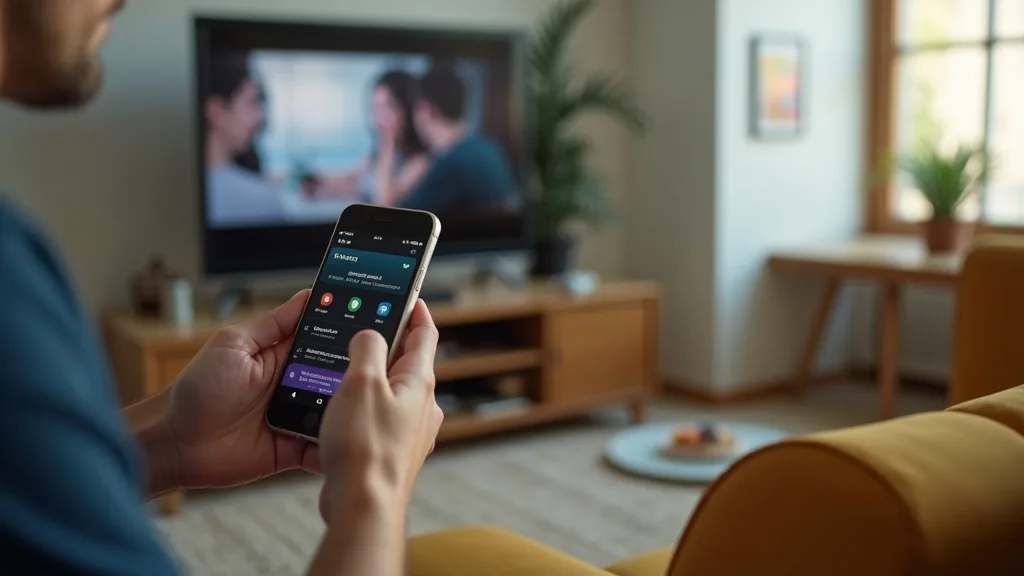
Your VPN’s split tunneling feature is supposed to let you stream Disney Plus securely while keeping your banking app on your local network, but on Android 14, it might just stop working entirely. This guide will help you diagnose and fix a broken split tunneling setup, restoring the perfect balance between security and convenience on your device. You’ll get clear, step-by-step troubleshooting for this common Android 14 headache.
What you’ll learn:
- Why split tunneling fails on Android 14 and how to confirm it’s the culprit.
- A step-by-step method to fix the configuration and get back to streaming.
- How to choose a VPN that handles split tunneling reliably.
Why Your VPN Split Tunneling Stops Working on Android 14
Android 14 introduced several under-the-hood changes to how apps manage network permissions and VPN integrations. These updates, designed to enhance security, can sometimes disrupt how VPN clients configure split tunneling rules. The feature might appear to be active in your VPN app, but the operating system isn’t correctly applying the “bypass VPN” rule to the apps you’ve specified, like Disney Plus. This often results in error messages from streaming services that detect a VPN, or apps failing to connect to the internet at all when they should be using your regular Wi-Fi or mobile data.
Step-by-Step Fix for Split Tunneling on Android
Before you dive in, ensure your VPN app is updated to the latest version, as developers frequently release patches for new Android versions.
Step 1: Confirm the Split Tunneling Issue
First, verify that split tunneling is indeed the problem. Connect to your VPN and try to access Disney Plus. If you get a proxy or VPN error, disconnect the VPN entirely and try again. If Disney Plus works without the VPN, but fails when the VPN is connected—even with Disney Plus added to your split tunneling exclusion list—then the split tunneling feature is malfunctioning.
Step 2: Reset Your Split Tunneling Configuration
Go into your VPN app’s settings and find the split tunneling menu (it might be called “Split Tunneling,” “Bypass VPN,” or “App Exclusions”). Clear the current list of apps. Now, re-add Disney Plus to the exclusion list. This simple reset can often clear up any glitches in the rule set that Android 14 is having trouble processing.
Step 3: Check for Conflicting VPN Profiles
Android allows only one active VPN connection at a time. If you have any old, unused VPN profiles configured in your device’s system settings (Settings > Network & internet > VPN), they can sometimes cause conflicts. Remove any VPN profiles you no longer use.
Step 4: Restart Your Device and VPN Connection
A classic fix for a reason. Fully restart your Android device to clear its network stack and any temporary software conflicts. After the reboot, open your VPN app, reconnect to a server, and test Disney Plus again with your reconfigured split tunneling rules.
Choosing a VPN with Reliable Split Tunneling
Not all VPNs are created equal, especially when it comes to advanced features like split tunneling on the latest operating systems. If you find yourself constantly battling a flaky connection, it might be time to switch to a provider known for robust and consistent performance. Look for a VPN that offers a user-friendly interface for managing app exclusions and has a proven track record of quickly adapting to new Android updates.
For instance, NordVPN offers a feature it calls “Split Tunneling” (on its Android app) that allows you to easily select which apps use the VPN tunnel and which bypass it, providing a straightforward solution for streaming Disney Plus.
Best VPN this month: Surfshark is a top contender that combines reliable split tunneling with excellent unblocking capabilities for streaming services, all at a very competitive price.
Advanced Troubleshooting: When the Basics Don’t Work
If you’ve tried everything above and Disney Plus is still blocked, the issue might be deeper. Some VPNs use different tunneling protocols, and certain protocols may not play nicely with split tunneling on Android 14. Try switching your VPN connection protocol within the app’s settings—for example, from OpenVPN to WireGuard®, or vice-versa. This can sometimes resolve underlying compatibility issues.
As a last resort, you may need to uninstall and reinstall your VPN application. This will wipe all settings and give you a fresh start. Before you do, check the provider’s support page or our VPN reviews to see if there are any known issues with Android 14.
Stream Safely and Conveniently with a Fixed VPN
A properly functioning split tunneling setup is the key to a seamless online experience. It lets you secure your general browsing and data-heavy tasks through the VPN while allowing speed-sensitive apps like Disney Plus to run directly on your high-speed home network. By following these steps, you should be able to reclaim that functionality on your Android 14 device.
Don’t let a technical glitch compromise your streaming or your security. Get a VPN that makes split tunneling simple and reliable, so you can stop troubleshooting and start watching.
For more guides on getting the most out of your privacy tools, explore our other privacy guides.



Join the discussion
Have a question or a fix to add? Share it below.