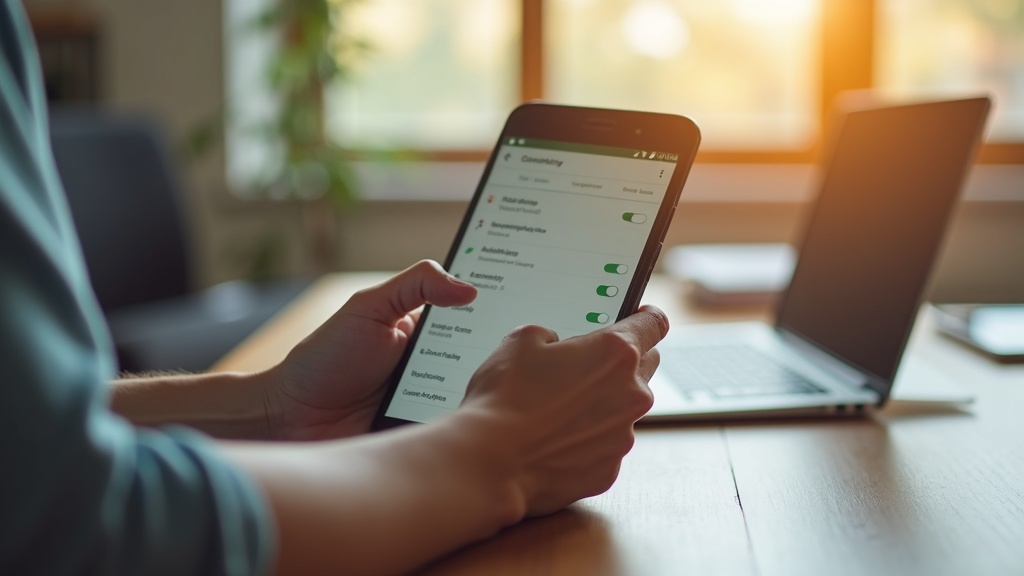
Your VPN’s split tunneling feature should give you precise control over which apps use the encrypted tunnel, but on Android 15, it can suddenly stop working with critical apps like your banking portal or YouTube TV. When split tunneling fails, you’re left choosing between a full VPN connection that breaks these services or no VPN protection at all. This guide will walk you through the specific steps to diagnose and fix split tunneling issues on Android 15, restoring your ability to bank securely while streaming geo-restricted content.
What you’ll learn:
- Why Android 15 and specific apps cause split tunneling to fail.
- A step-by-step troubleshooting process to get it working again.
- How to choose a VPN that handles split tunneling reliably.
Why Split Tunneling Fails on Android 15
Android 15 introduces stricter background process management and enhanced security protocols that can interfere with how VPNs manage app-specific routing. Banking apps often employ their own robust security measures, like certificate pinning, which can conflict with the VPN’s attempt to exclude them from the tunnel. Similarly, streaming services like YouTube TV aggressively detect and block VPN IP addresses; if your split tunneling configuration is slightly off, the app might still be routed through the VPN and get blocked. Essentially, the delicate balance required for split tunneling is easily disrupted by the very features designed to make Android 15 more secure and efficient.
Step-by-Step Troubleshooting for Split Tunneling
Before you switch VPNs, run through this checklist. One of these steps is often the simple fix you need.
1. Update Your VPN App and Android OS
This is the most common fix. VPN providers are constantly playing catch-up with new OS updates. Go to the Google Play Store and check for updates to your VPN application. Then, navigate to your Android Settings > System > System update to ensure your phone is running the latest version of Android 15. An outdated app trying to communicate with a newly updated OS is a recipe for split tunneling failure.
2. Reconfigure Your Split Tunneling Rules
Sometimes, the configuration itself becomes corrupted. Don’t just check your settings; reset them.
- Open your VPN app and go to the split tunneling settings (often called “Bypass VPN” or “App Exclusions”).
- Remove all apps from your inclusion or exclusion list.
- Close the VPN app completely from your recent apps.
- Reopen the VPN app and re-add the apps you want to bypass the tunnel (e.g., your banking app and YouTube TV). Be very deliberate about choosing “Exclude” or “Bypass” for these apps.
- Reconnect to the VPN and test.
3. Check for Conflicting Apps and Settings
Other security or battery optimization apps can block the VPN’s required permissions.
- Battery Optimization: Go to Settings > Apps > [Your VPN App] > Battery. Set the battery usage to “Unrestricted.” This prevents Android from killing the VPN’s background processes.
- Always-on VPN: If you have “Always-on VPN” enabled in your Android network settings (under Settings > Network & internet > VPN), try disabling it temporarily. This feature can sometimes override the app-level rules set by split tunneling.
- Other VPNs/Ad Blockers: Ensure you don’t have any other VPN profiles or DNS-based ad blockers (like Blokada or AdGuard) active, as they will conflict.
4. Switch VPN Protocols
The VPN protocol you’re using can impact reliability. Modern protocols like WireGuard are generally more stable and faster. Inside your VPN app’s settings, look for a “Protocol” section and try switching from OpenVPN to WireGuard, or vice versa. Reconnect and test your split tunneling again after making the change.
Choosing a VPN with Reliable Split Tunneling
If you’ve tried everything and split tunneling remains unstable, the problem might be your VPN provider. Not all VPNs implement this feature equally well, especially on the latest Android versions. A top-tier VPN will offer a user-friendly interface for split tunneling, consistent performance, and rapid updates to maintain compatibility.
For a seamless experience that works with Android 15, banking apps, and streaming services, we recommend NordVPN. Its “Bypass VPN” feature is intuitive, reliable, and backed by one of the fastest and most stable networks available. It’s a solid choice for anyone who depends on precise app control.
When All Else Fails: Alternative Solutions
If you’re still facing issues, here are two final strategies.
Use a Secondary Device or Profile
For tasks that absolutely cannot tolerate a VPN, like certain banking transactions, consider using a separate device altogether or a dedicated work profile on your phone that does not have the VPN installed. This is a nuclear option, but it guarantees the app will function normally.
Manual VPN Connection and Disconnection
While not as convenient as automated split tunneling, you can simply disconnect from the VPN when you need to use your banking app or YouTube TV, and then reconnect afterward. It’s a manual process, but it’s a foolproof way to ensure the specific app is not being routed through the VPN server.
Take Control of Your Android Privacy Today
A malfunctioning split tunneling feature can feel like a major setback, but it’s usually fixable with a few targeted adjustments. By following the steps above, you can likely resolve the conflicts with your banking apps and YouTube TV on Android 15. If your current VPN can’t keep up, it might be time for an upgrade to a service that prioritizes both power and precision. Secure your Android connection with a VPN that gets split tunneling right and never choose between security and functionality again.





Join the discussion
Have a question or a fix to add? Share it below.